YouTube Thumbnail Design AI Prompt with Custom Text
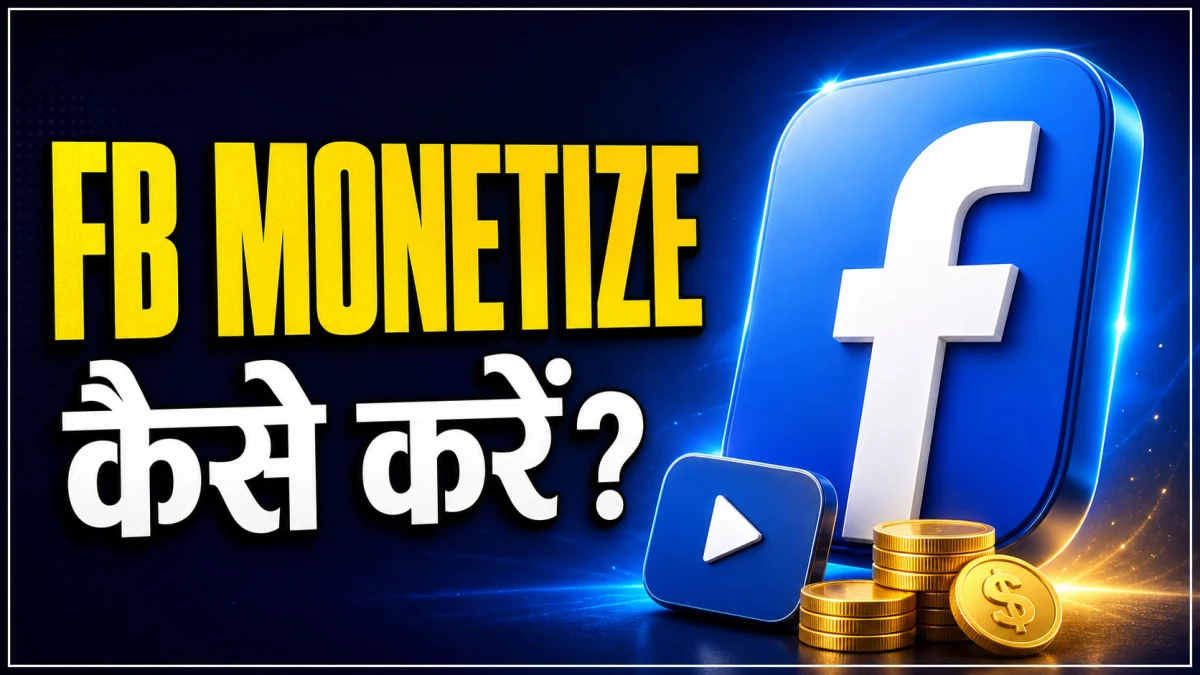
Create a YouTube thumbnail with bold text, a clear main subject, and contrasting colors. Customize this AI image prompt with your video topic, photos, and design preferences.
Create a professional YouTube thumbnail image based on the following details.
MY DETAILS:
• Video topic: [ENTER YOUR VIDEO TOPIC]
• Exact thumbnail text: [ENTER 2–5 WORDS]
• Main subject: [PERSON / PRODUCT / POSTER / OTHER SUBJECT]
• Preferred colors: [ENTER TWO MAIN COLORS OR WRITE AUTO]
• Visual style: [CINEMATIC / CLEAN / COLORFUL / TECH]
• Reference images: [DESCRIBE ATTACHED IMAGES OR WRITE NONE]
CANVAS:
Use a horizontal 16:9 composition, targeting 1280 × 720 pixels if supported.
COMPOSITION:
Place the main subject on the right and the headline on the left.
Make the subject large, recognizable, and clearly separated from the background.
Keep the layout focused on one main idea with minimal supporting elements.
Leave comfortable margins around the headline and important details.
Keep essential information away from the bottom-right corner.
THUMBNAIL TEXT:
Display only the exact text supplied above.
Use large, bold, easy-to-read lettering with strong contrast.
Keep the headline to a maximum of two lines.
Preserve spelling and the supplied language, including Hindi characters and matras.
Use a restrained outline or shadow when needed for readability.
Do not add extra words, labels, or random letters.
If no text is supplied, leave clean space for a headline to be added later.
SUBJECT AND REFERENCES:
If a portrait is attached, preserve the person's recognizable facial features, age, skin tone, hairstyle, and natural proportions.
Use lighting and background changes to integrate the portrait into the design.
If a poster, product, or screenshot is attached, keep its important details recognizable.
If no reference is supplied, create a relevant visual based on the topic without inventing a real person's likeness.
BACKGROUND AND LIGHTING:
Use a simple background related to the video topic.
Apply the selected color palette with clear contrast between text, subject, and background.
Use controlled highlights, natural shadows, and subtle depth.
Avoid excessive glow and distracting decoration.
QUALITY:
Make the headline and subject understandable at a small mobile preview size.
Keep edges clean, the subject sharp, and the composition balanced.
Ensure the image accurately represents the video's content.
AVOID:
Clutter, tiny text, cropped headlines, distorted faces or hands, unnecessary arrows, repeated objects, fake interface details, unsupported claims, and watermarks.
OUTPUT:
Generate one finished thumbnail image.
If image generation is unavailable, provide one complete image-generation prompt using my details.
If the video topic or main subject is missing, ask for those details first.
If Gemini doesn't auto-fill, just press Ctrl + V to paste the prompt.
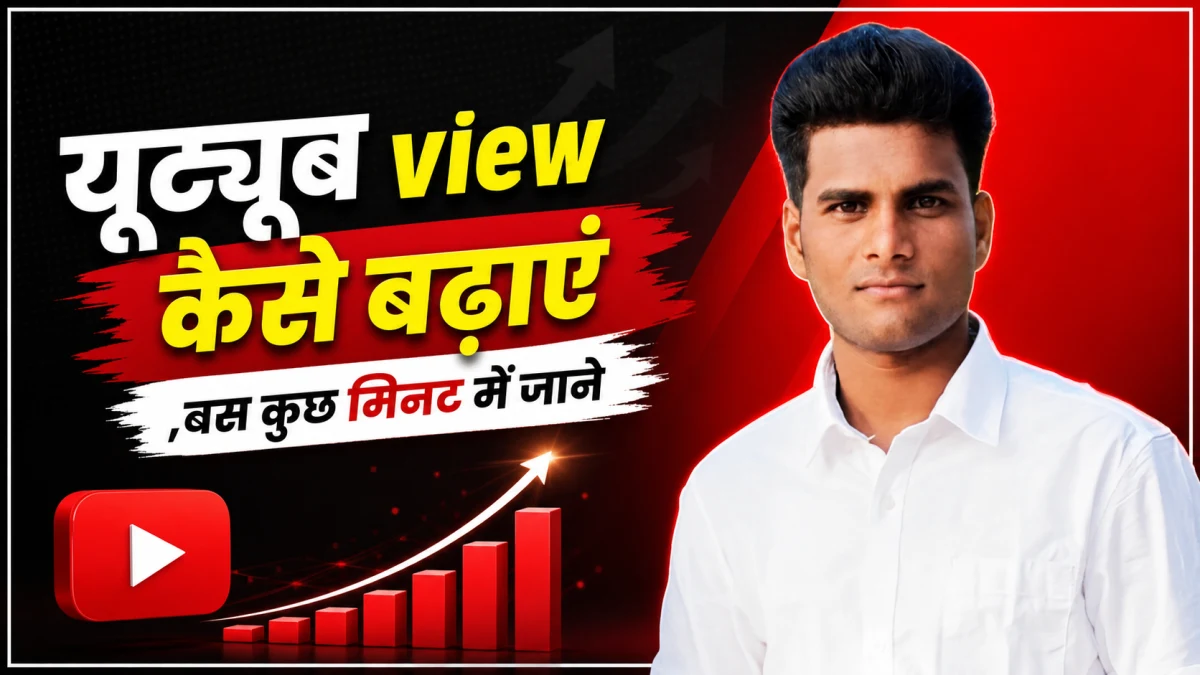
YouTube Thumbnail AI Prompt with Your Own Photo
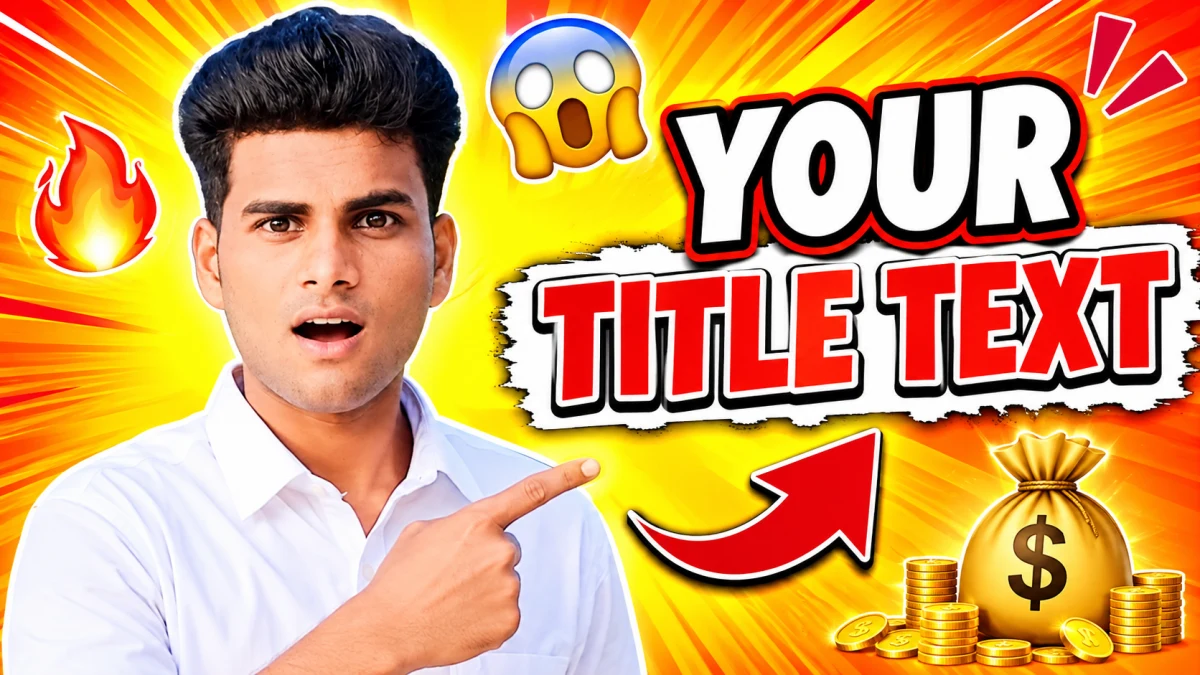
YouTube Thumbnail Style AI Photo Editing Prompt
YouTube Video Script Writer AI Prompt
YouTube Title, Description and Tags Generator AI Prompt
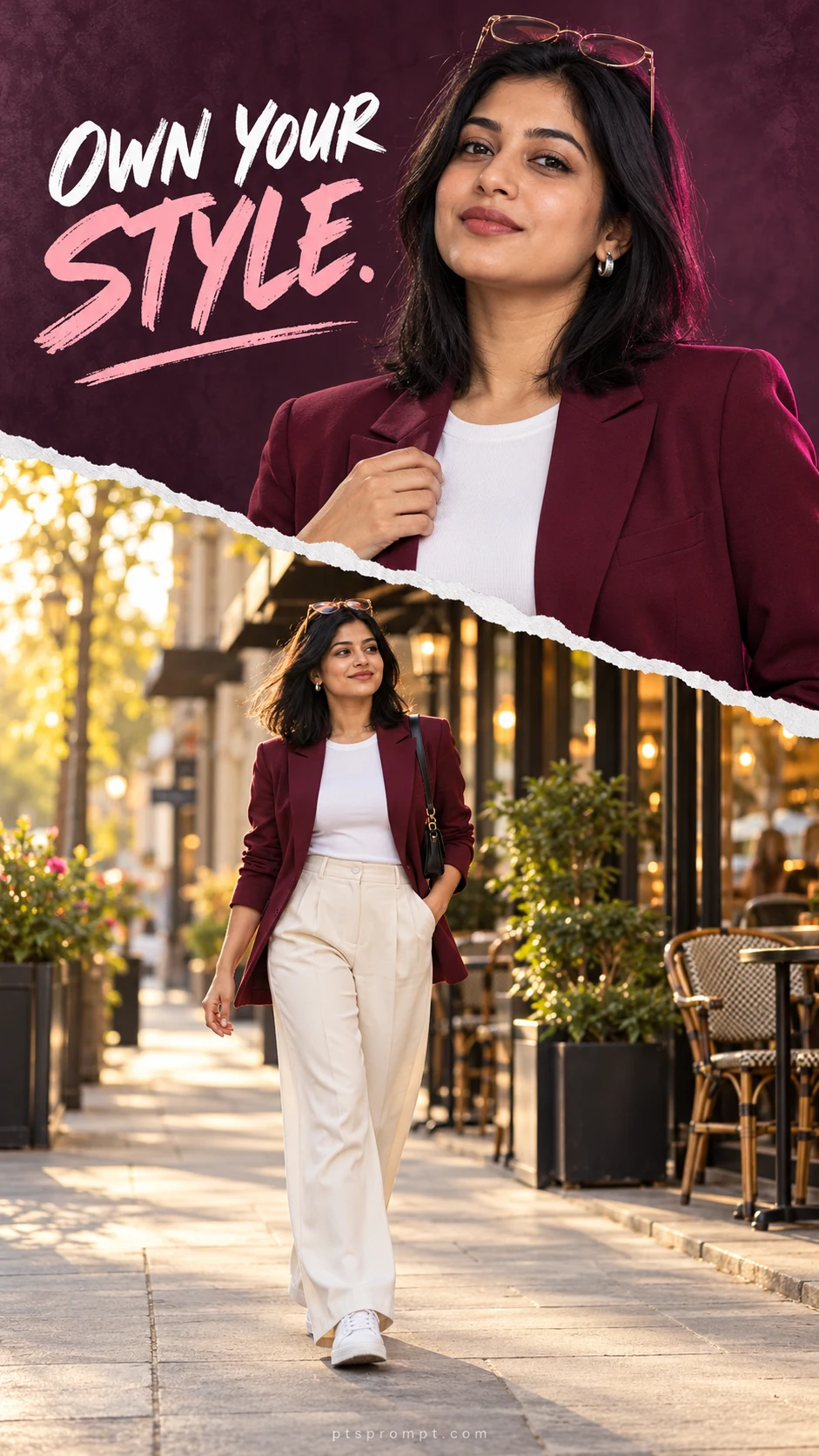
Stylish Torn Paper Collage for Girls – AI Photo Editing Prompt
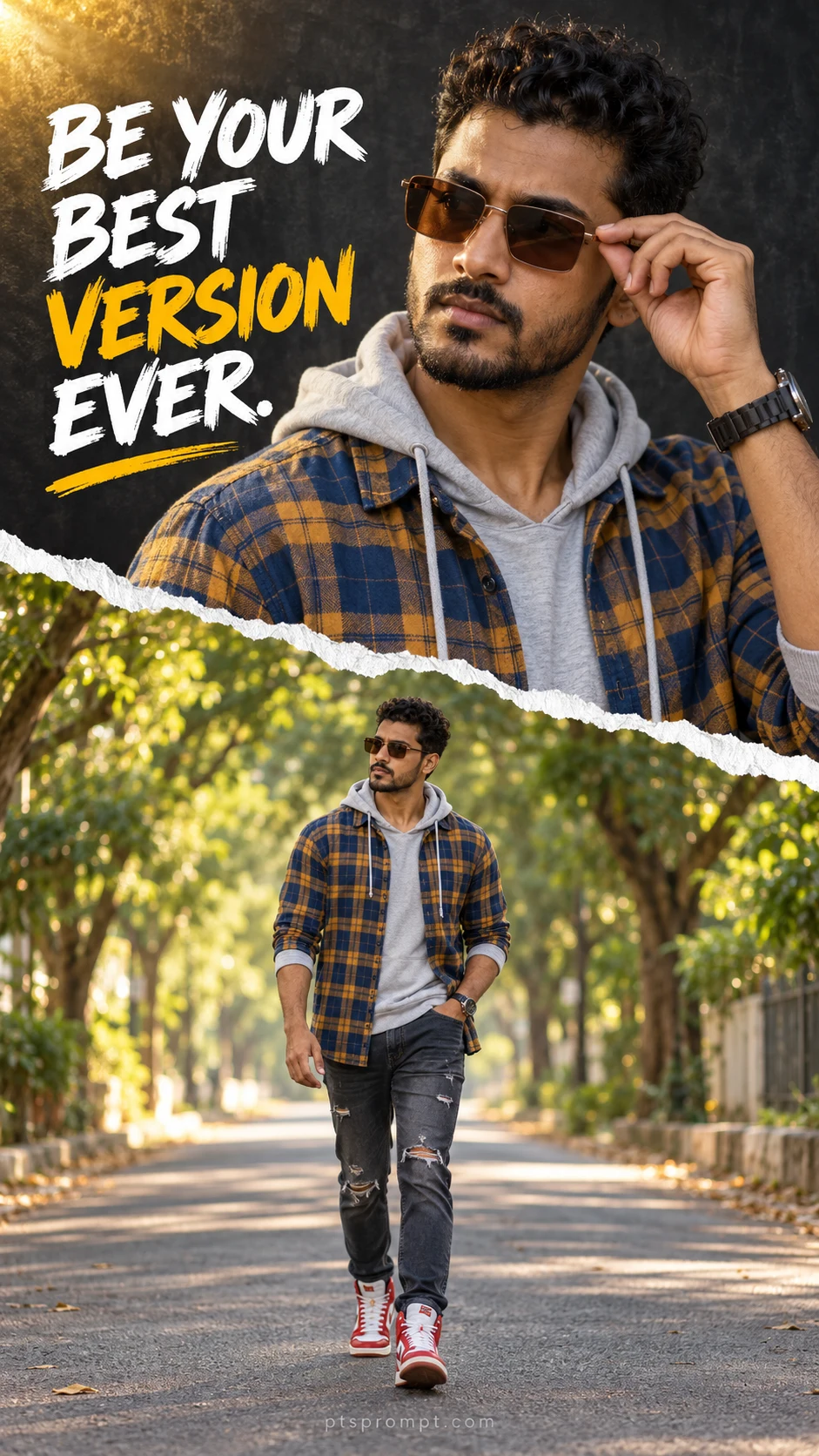
Torn Paper Double Portrait with Quote – Boys AI Photo Editing Prompt
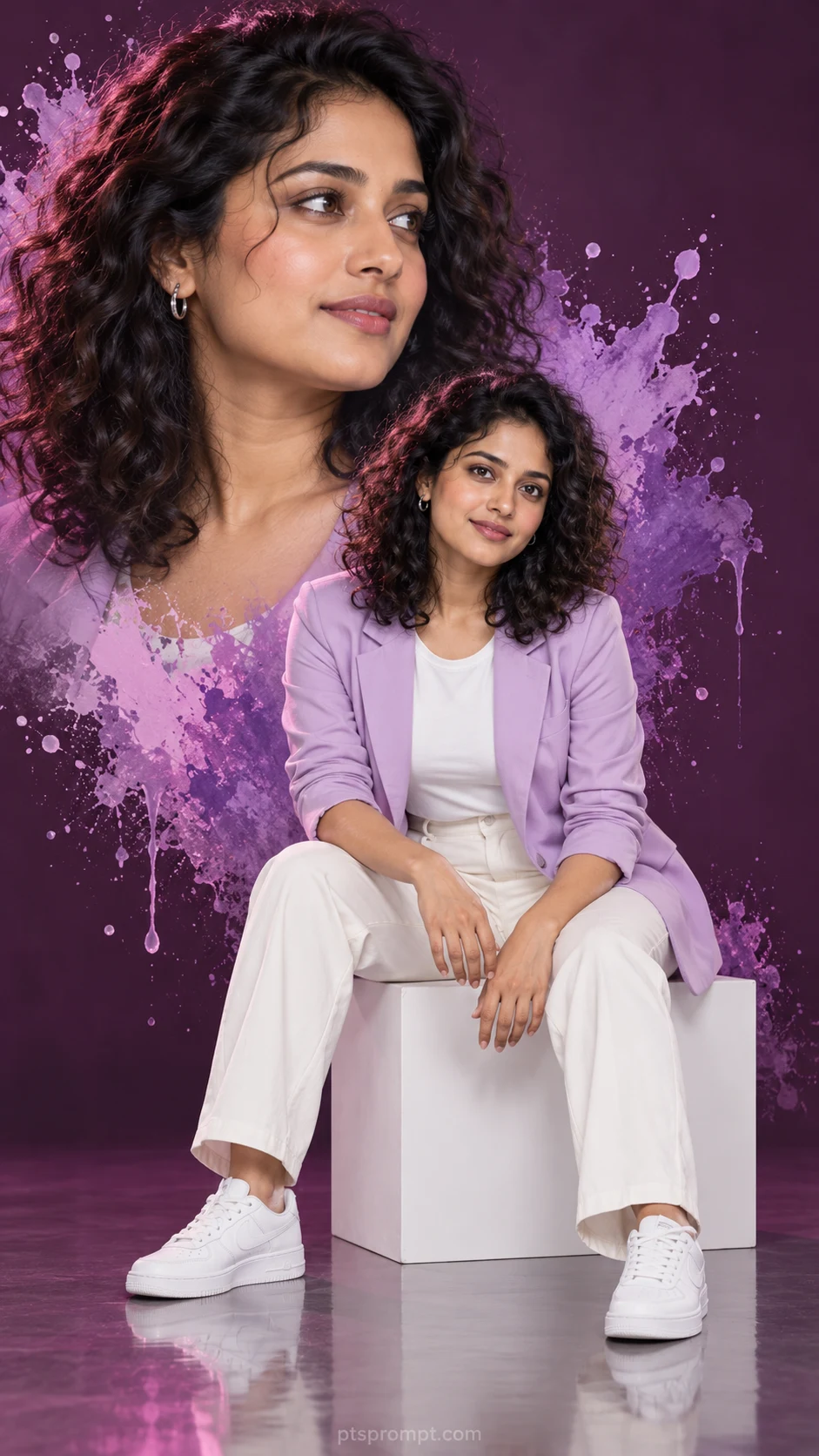
Purple Paint Splash Double Portrait for Girls – AI Photo Editing Prompt